Parking operations
Aero Ranger helps parking teams detect vehicles that exceed timed parking limits by combining RTK-enabled patrol location, ANPR reads, zone profiles, grace periods, alerts, evidence capture and case workflows.
30 days risk free. Start with one workflow and a clear success criterion.
The operating problem
Timed parking enforcement breaks down when location precision, zone schedules, grace periods and evidence records live in separate places. Teams need a clean way to connect the plate, bay, rule, timestamp and follow-up action.

The source workflow
Overstay enforcement is a timed observation workflow. Council needs to show the vehicle was in the right zone, under the right sign, for longer than allowed, with any grace period or exception considered before issue.
Check active days, hours, sign wording, bay or street segment, time limit, grace period and any permit or disability exceptions.
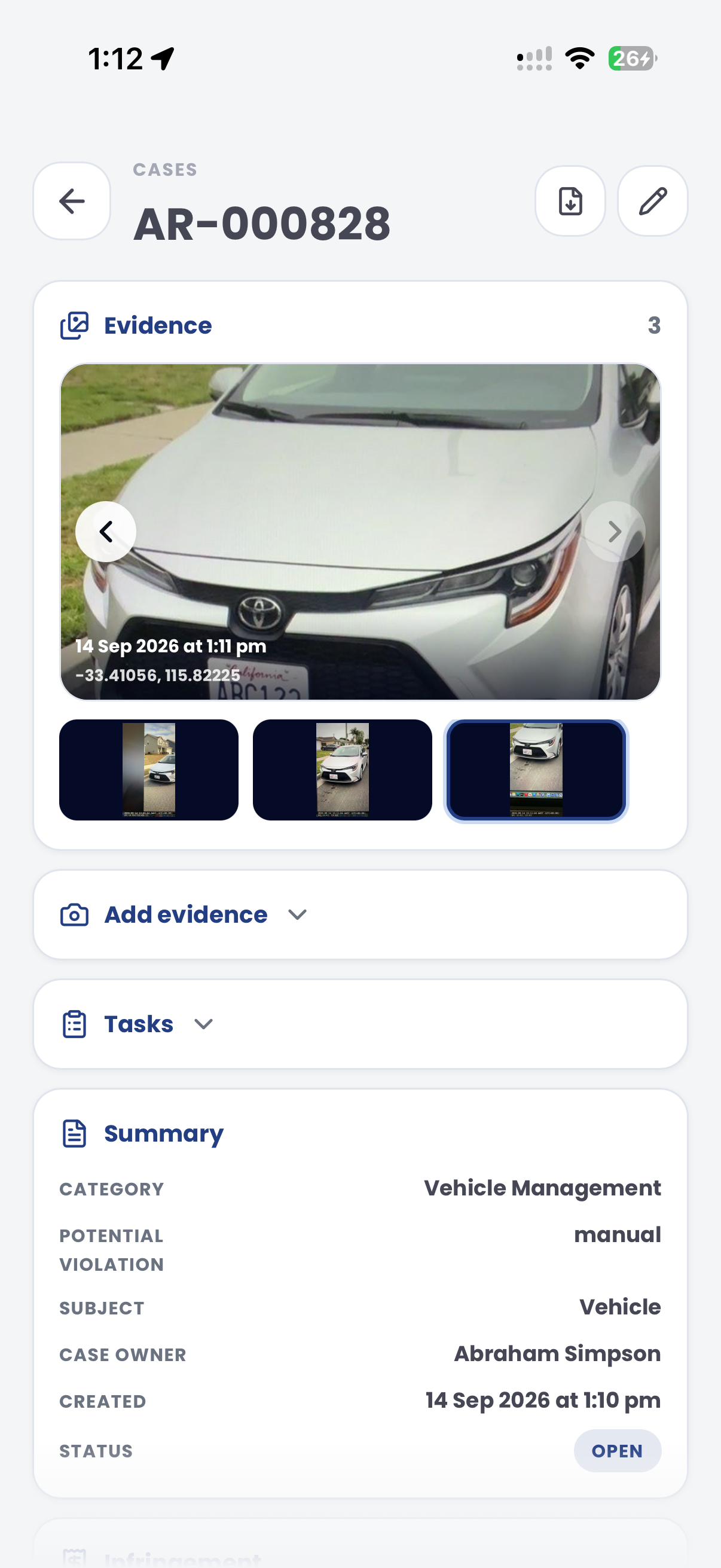
Link first and later sightings, photos, GPS or bay context, officer notes and any manual confirmation to the same review record.
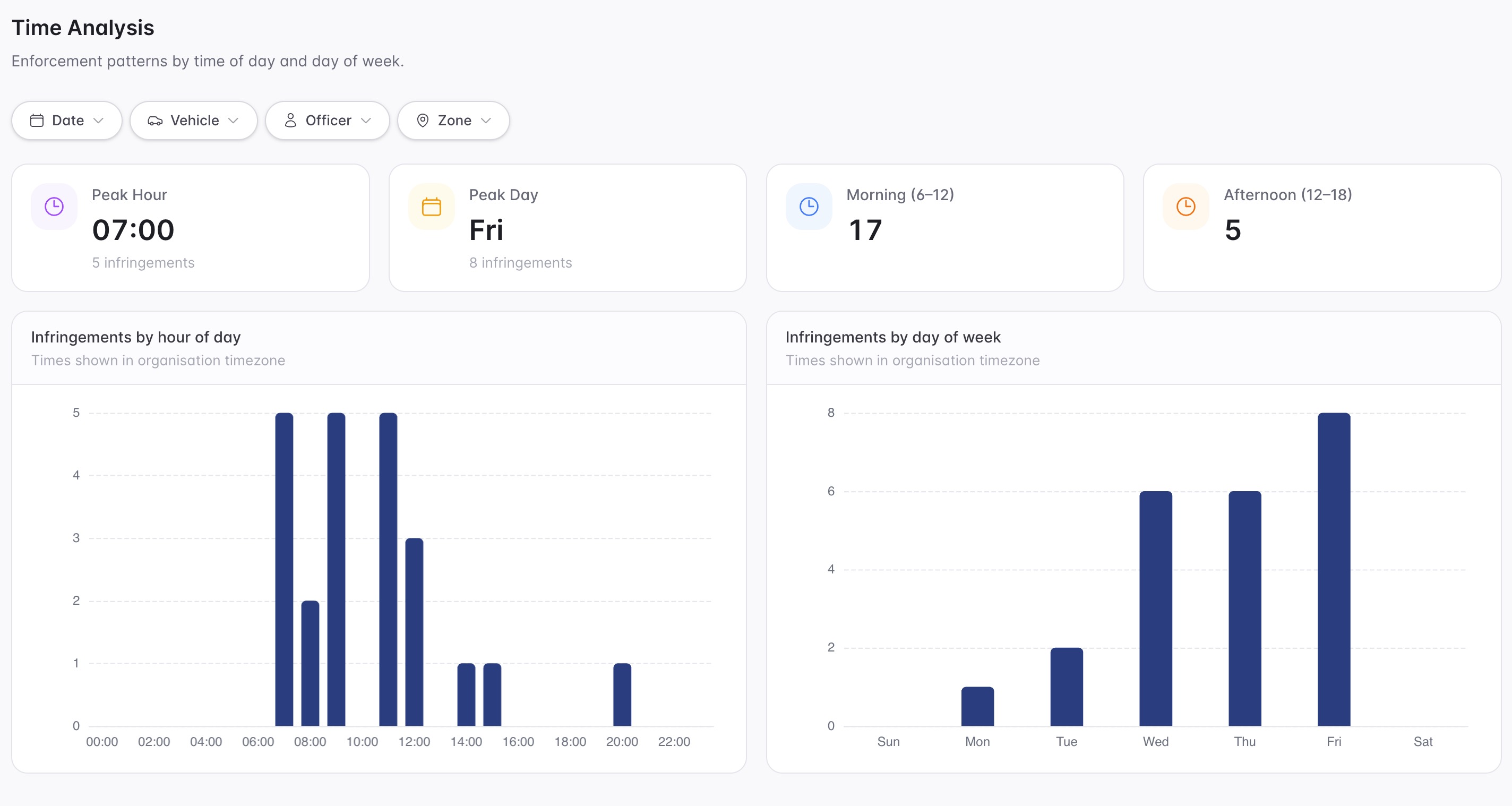
Decide whether the matter is valid, unclear, exempt or suitable for warning, then report streets and time windows where overstays concentrate.
Rego, first observed time, repeat observed time, patrol vehicle, GPS position and confidence context.
Timed zone, permitted duration, grace period, active days, active hours, bay or street segment and local rule reference.
ANPR reads, location trace, photos, officer notes, timestamps and any manual confirmation made before issue.
The reviewable record
Teams can start with a pilot street or car park, tune thresholds and then expand the same model across loading bays, school zones, paid parking and permit-adjacent areas.
A focused first test
Bring a real timed parking scenario and we will walk from first ANPR read to zone-rule evaluation, alert, evidence capture, case review and notice generation.
Capture plate, timestamp, device location and route context while patrol vehicles move through timed parking zones.
Configure reusable profiles for max stay, grace, min sightings, active schedules, detection confidence and repeat handling.
Compare dwell or chain span against the active zone profile so vehicles only escalate when they exceed the allowed stay plus grace.
30 days risk free. Start with one workflow and a clear success criterion.
Related operating considerations
Use longer dwell thresholds and recheck workflows for vehicles that appear not to move for days.
Use overnight dwell thresholds and restricted zones for public land camping compliance.
Apply the same zone, dwell and evidence pattern to restricted freedom camping areas.
Pair timed parking rules with permit categories, exemptions and paid session checks.
The field app / iPhone and Android
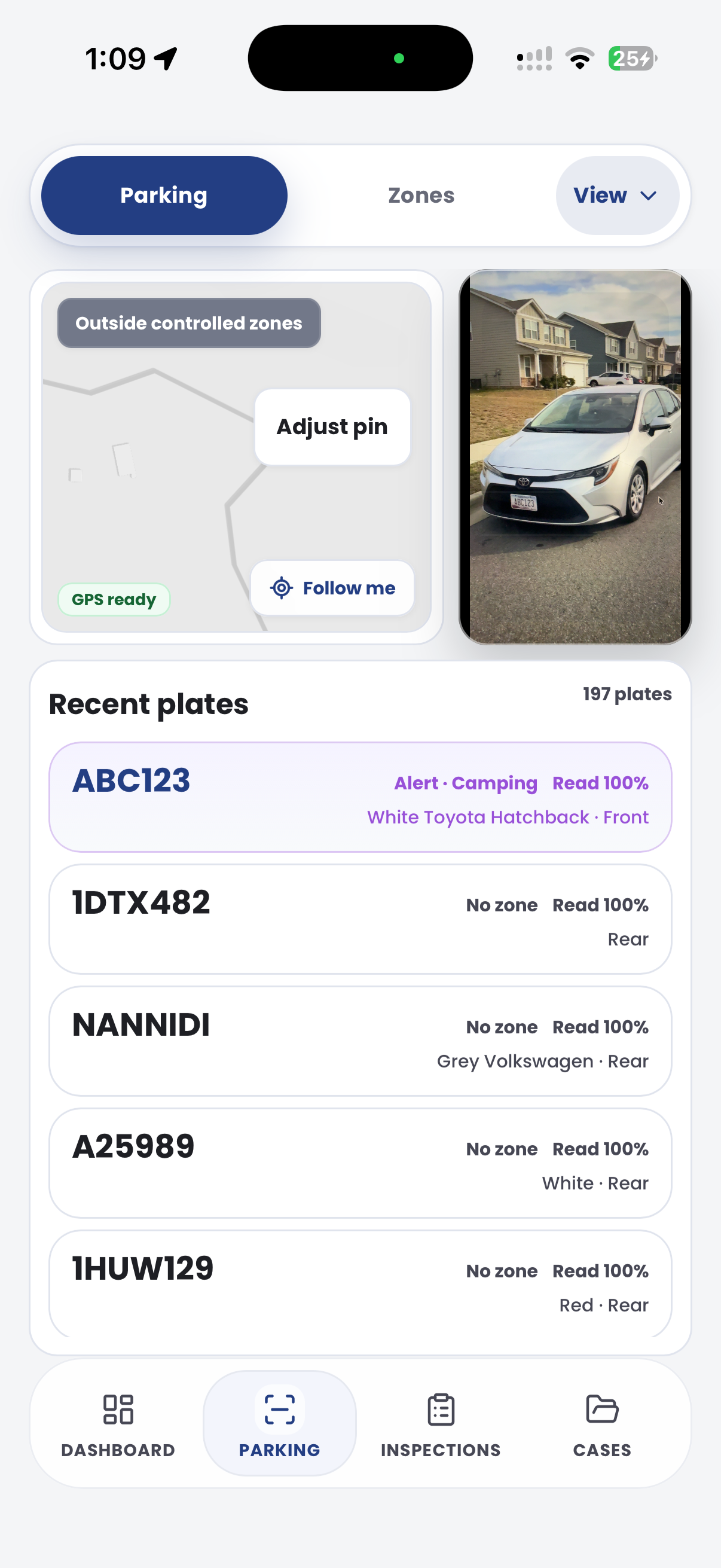
Bring plate observations, GPS context and site evidence into the patrol record. Keep the officer's field work connected to overstay review in CORE.
Customer field stories
Seven short case studies covering parking, patrol, evidence and compliance workflows in real operating environments.
A council team discusses field capture, review and day-to-day parking operations.
Full product walkthrough
Watch the full CORE walkthrough for a closer look at connected field work, evidence, cases, permits and reporting.
Use a free 1:1 strategy session to outline the current process, name a practical success criterion and decide whether to start a 30-day risk-free trial.
Free from Aero Ranger
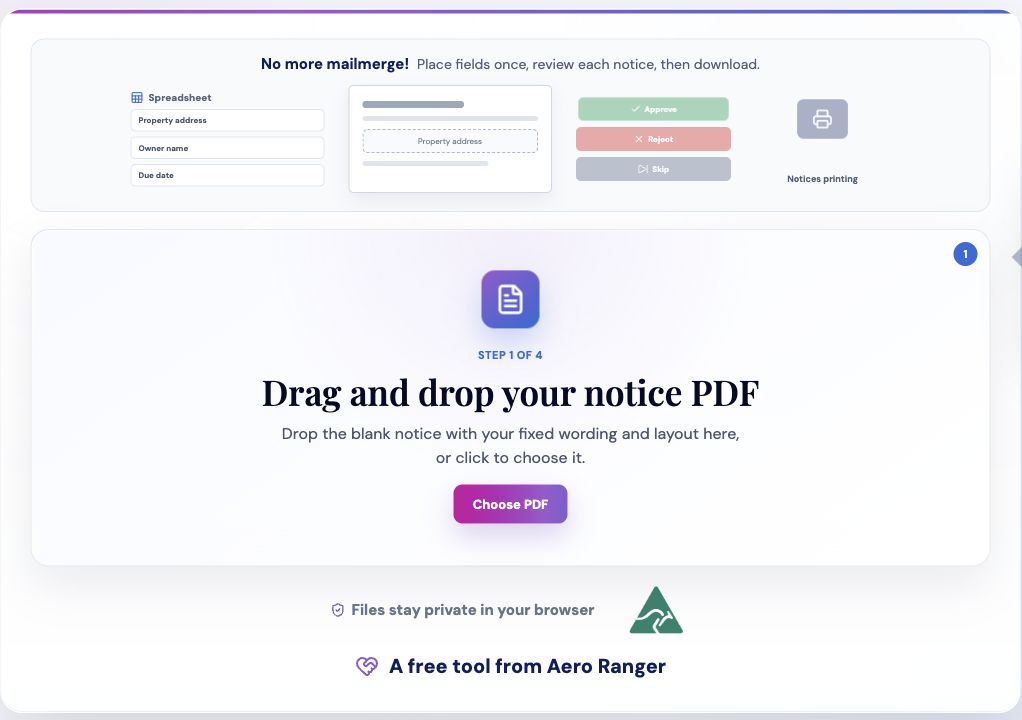
No login required. Aero NoticeFlow turns spreadsheet rows and your approved notice PDF into individual notices you can review and download in your browser.