Missed vehicles of interest
Aero Ranger helps authorised enforcement teams reduce missed vehicles of interest by connecting governed vehicle-of-interest lists, ANPR capture, officer alerts, human review, evidence, cases, reporting and audit history.
30 days risk free. Start with one workflow and a clear success criterion.
The operating problem
Priority vehicle workflows can fail when lists are stale, alert delivery is unclear, officers get a bare plate match, or nobody records what happened next.

The source workflow
Vehicles-of-interest work needs governance as much as detection. The council or partner team has to control why a vehicle is listed, who can see it, when the entry expires and what response should follow an alert.
Confirm list owner, reason, authority, expiry, sensitivity, officer visibility and the required response for each category.
Record the sighting, alert delivery, officer acknowledgement, attendance, non-attendance, case creation or referral.
Review whether missed events came from list quality, device coverage, alert routing, officer availability or process gaps.
List category, owner, expiry, authorised users, reason for inclusion and review or removal date.
Rego, sighting time, location, alert type, officer notified, delivery channel and response status.
Plate read, image, GPS point, timestamp, officer notes and any attached case or referral record.
The reviewable record
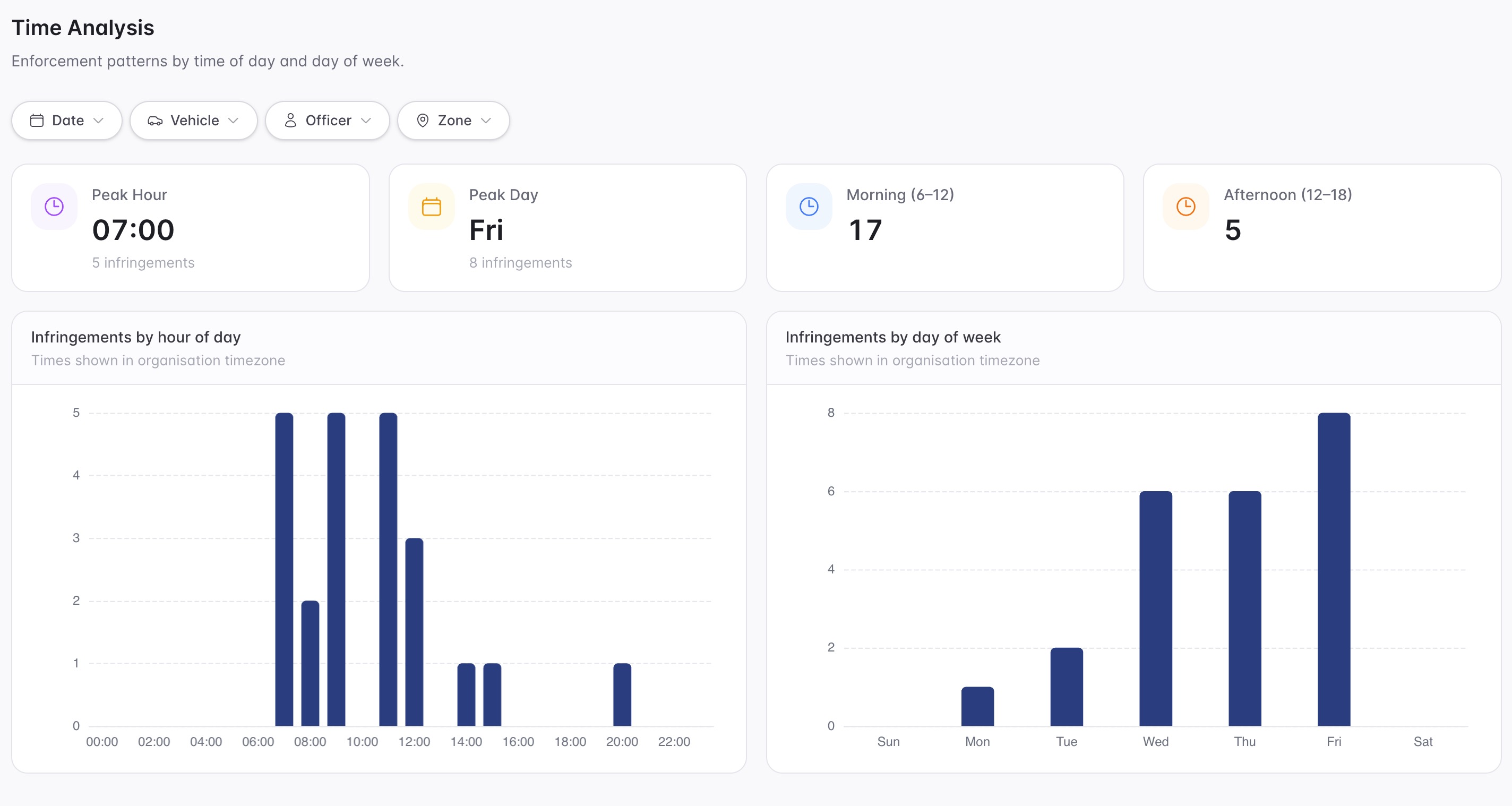
A vehicle-of-interest workflow needs the plate, list category, location, priority, owner, response and case outcome visible together.
A focused first test
Bring a real list, alert category or escalation pathway and we will map list ownership, capture sources, field delivery, cases and audit reporting.
Create governed list categories with owners, expiry dates, priority, notes and action guidance.
Match authorised lists against mobile, fixed or integrated plate capture with confidence and source context.
Deliver actionable alerts into the field with category, priority, response notes and escalation instructions.
30 days risk free. Start with one workflow and a clear success criterion.
Related operating considerations
Use governed authorised lists and pickup-zone rules for rideshare, taxi and passenger transport work.
Review public-land sightings against registration and follow-up categories.
Compare registration status and vehicle history before a review decision is made.
Old, duplicated or unclear vehicle-list entries can create noise or leave real priority vehicles unrecognised.
The field app / iPhone and Android
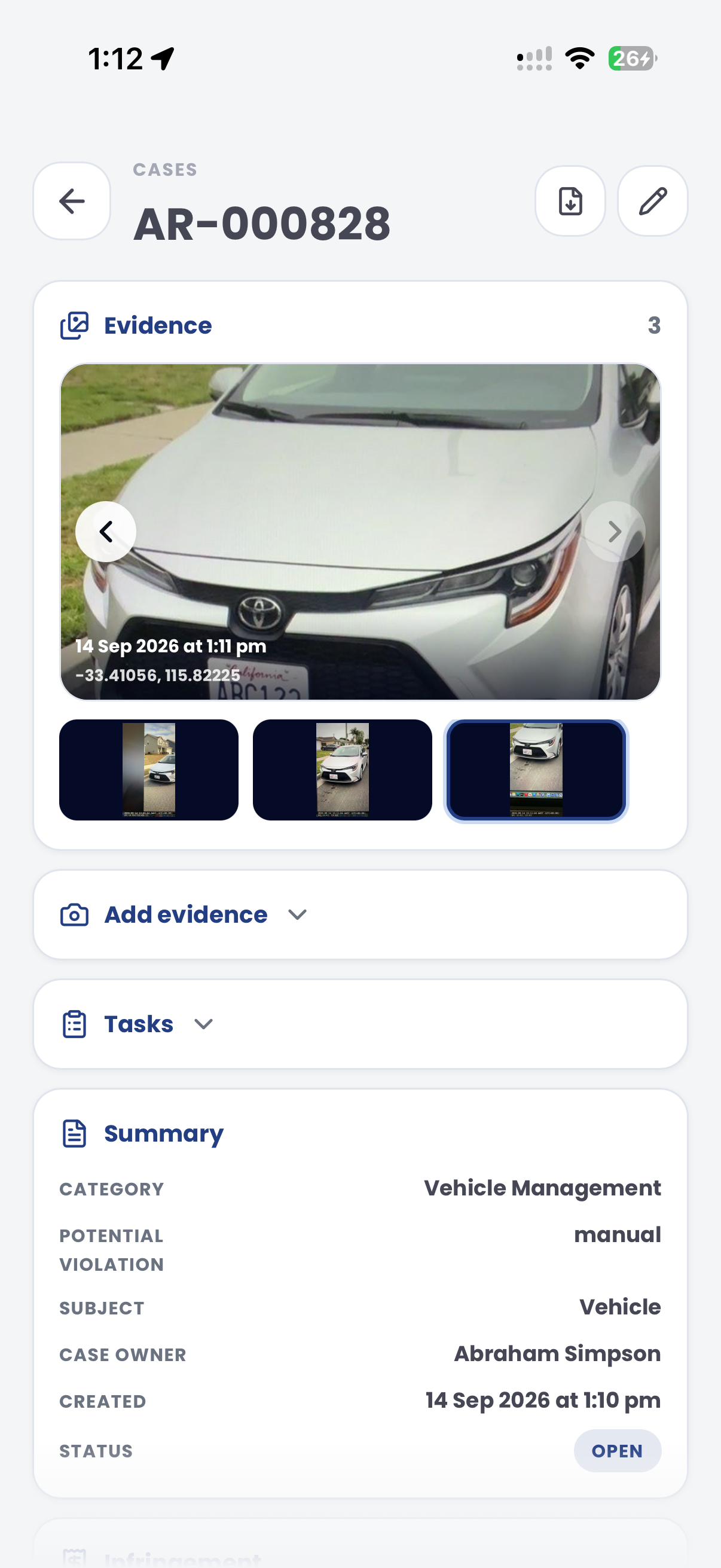
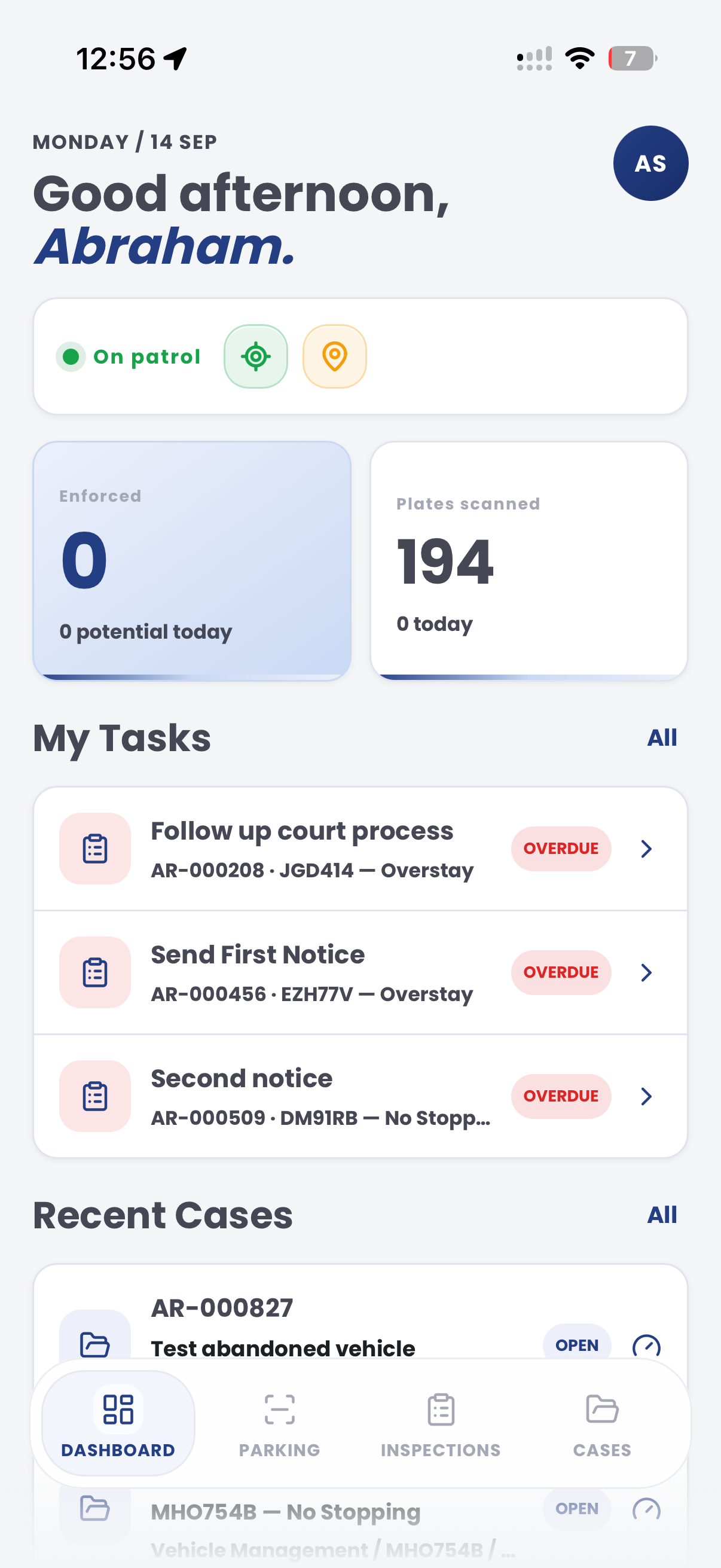
Take relevant case context into the field and add current observations. Keep evidence and tasks connected to the team's governed review process.
Customer field stories
Seven short case studies covering parking, patrol, evidence and compliance workflows in real operating environments.
A council team discusses field capture, review and day-to-day parking operations.
Full product walkthrough
Watch the full CORE walkthrough for a closer look at connected field work, evidence, cases, permits and reporting.
Use a free 1:1 strategy session to outline the current process, name a practical success criterion and decide whether to start a 30-day risk-free trial.
Free from Aero Ranger
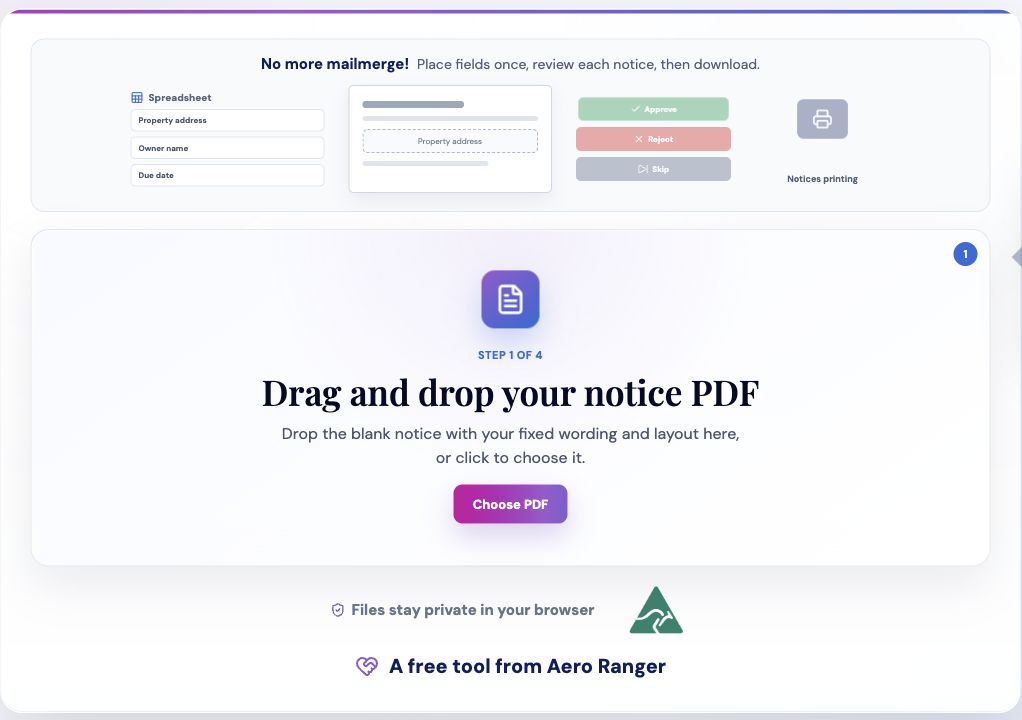
No login required. Aero NoticeFlow turns spreadsheet rows and your approved notice PDF into individual notices you can review and download in your browser.