Parking operations
Aero Ranger helps council parking and ranger teams manage no-stopping zones by linking signs, active schedules, vehicle observations, evidence, officer decisions, cases and reporting in one review workflow.
30 days risk free. Start with one workflow and a clear success criterion.
The operating problem
No-stopping zones often sit beside bus stops, crossings, schools, hospitals, loading areas, event streets and clearways. The workflow needs to show the active rule before a notice, warning, tow referral or closure is prepared.

The source workflow
Start with one high-pressure corridor, configure the active restriction and then extend the same model into schools, events, hospitals and transport nodes.
Define the no-stopping frontage, side of road, active time, sign reference, event override and related kerb rule.
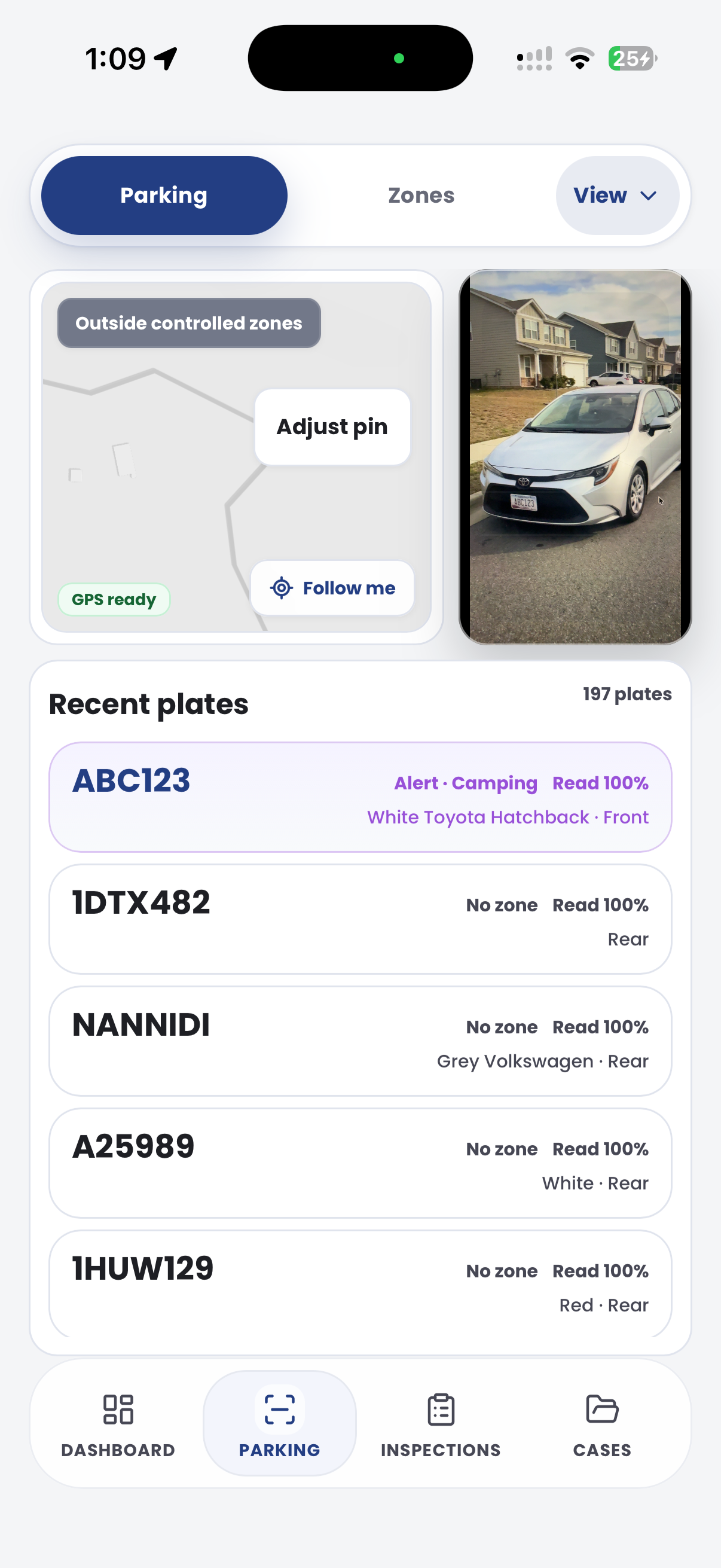
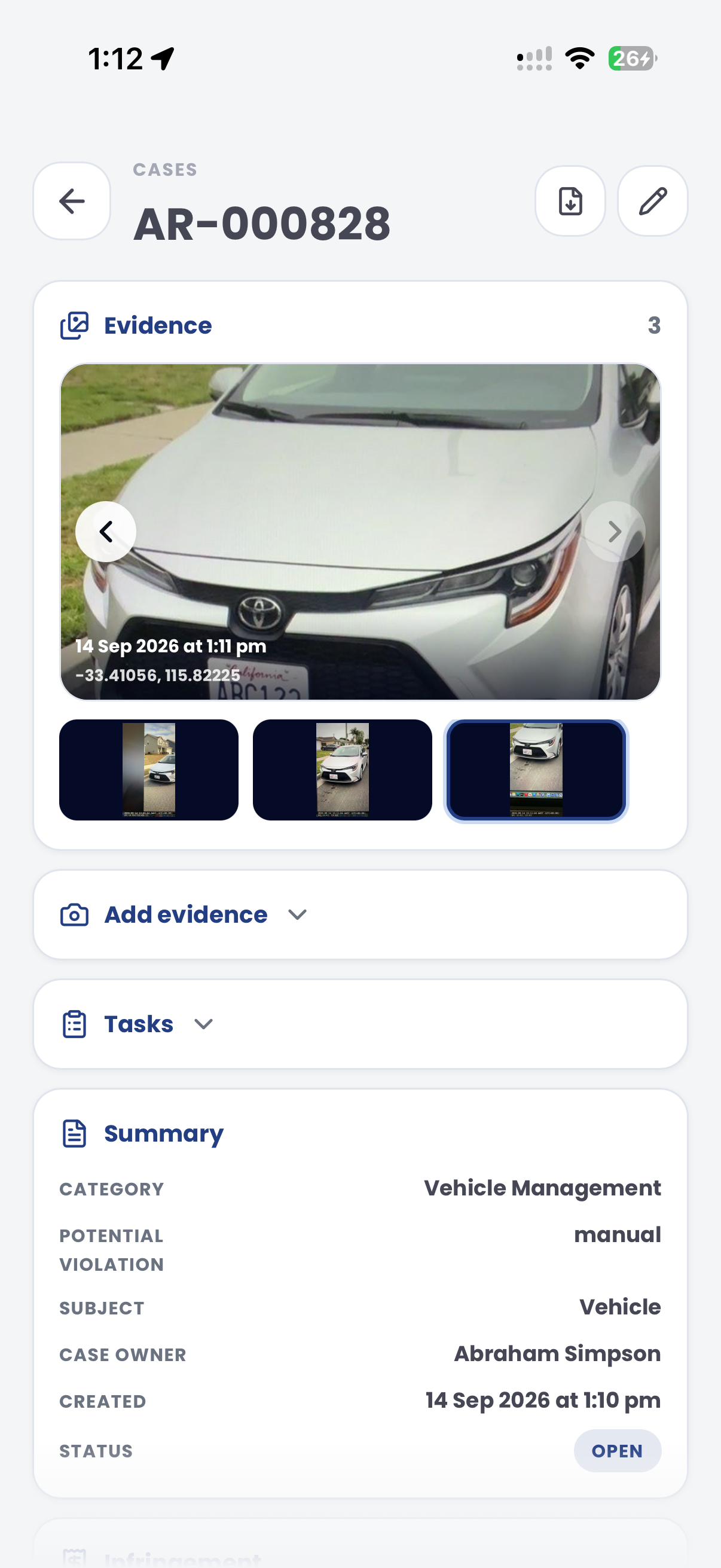
Attach vehicle photos, plate read where available, GPS context, sign view, time and officer notes.
Review emergency, authorised work, service, traffic control or other configured exceptions before action.
Record education, warning, notice, tow referral, appeal hold or closure with a clear status reason.
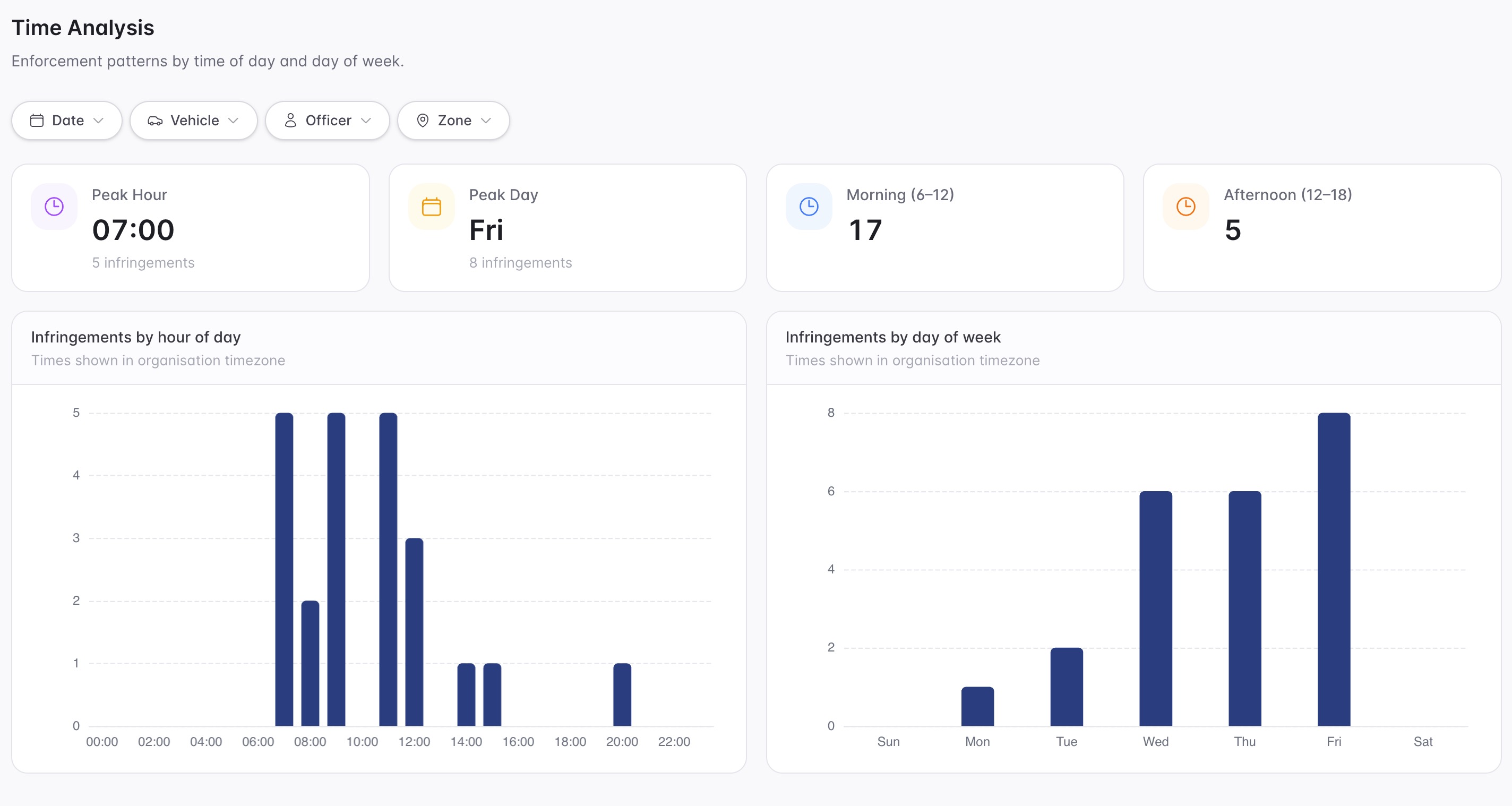
Compare repeat streets, active windows, event days and school peaks for managers and traffic teams.
A kerb can shift between parking, loading, clearway and no-stopping depending on day, time, school period or event controls.
The reviewable record
Review teams need the vehicle, sign, active window, obstruction context, officer note and outcome decision visible together.
A focused first test
Bring a real corridor, school frontage or event street and we will map active rules, evidence, offence mapping, cases and reporting.
Configure no-stopping areas with active days, times, temporary overrides and related kerbside controls.
Attach photos, plate reads where available, GPS context, sign notes, side-of-road detail and officer observations.
Map no-stopping outcomes to configured rules, enforcement categories, penalties, notices and review pathways.
30 days risk free. Start with one workflow and a clear success criterion.
Related operating considerations
Use no-stopping rules during short pick-up and drop-off windows.
Apply the same active-schedule model to loading, clearway and kerbside windows.
Use temporary no-stopping controls around venues, resident streets and access corridors.
Keep corridor rules, exemptions and evidence review visible for transport priority areas.
The field app / iPhone and Android
Capture the vehicle, location and visible site conditions. Keep officer observations connected to the review of signs, restrictions and potential matters.
Customer field stories
Seven short case studies covering parking, patrol, evidence and compliance workflows in real operating environments.
A council team discusses field capture, review and day-to-day parking operations.
Full product walkthrough
Watch the full CORE walkthrough for a closer look at connected field work, evidence, cases, permits and reporting.
Use a free 1:1 strategy session to outline the current process, name a practical success criterion and decide whether to start a 30-day risk-free trial.
Free from Aero Ranger
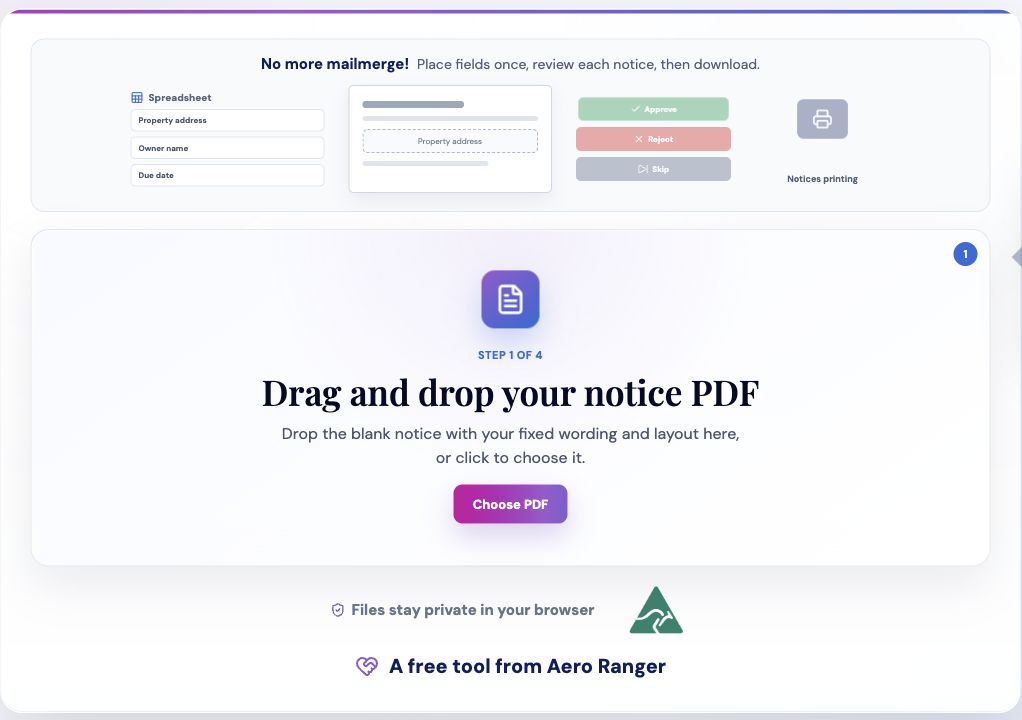
No login required. Aero NoticeFlow turns spreadsheet rows and your approved notice PDF into individual notices you can review and download in your browser.